Introduction
Cable clutter can make even a well-designed computer desk feel busy, cramped, and harder to use. Between a monitor, laptop, charging cables, speakers, peripherals, and power adapters, cords can quickly spread across the desktop and down to the floor. The result is often a workspace that looks messy and feels less efficient than it should.
The good news is that reducing cable clutter does not usually require a major renovation or expensive equipment. In many cases, a cleaner desk comes from a few practical choices: identifying which cables are necessary, routing them more deliberately, and choosing the right organizers for the space you already have. With a little planning, you can make your desk easier to maintain and more comfortable to use.
This guide explains how to reduce cable clutter around your computer desk in a way that is practical, organized, and easy to apply. It covers useful cable management accessories, setup ideas, buying considerations, and common mistakes to avoid. Whether you work from home, game at your desk, or simply want a cleaner setup, these steps can help you create a more orderly workspace.
Start by Identifying What Actually Needs to Stay on the Desk
The first step in reducing cable clutter is not buying accessories. It is deciding which devices and cables truly need to remain visible or accessible. Many desks collect extra cords over time because older devices, backup chargers, and rarely used accessories never get removed.
Separate essential cables from temporary ones
Begin by unplugging everything and grouping cables by purpose. Keep the ones you use daily, such as your computer power cable, monitor cable, keyboard, mouse receiver, headset, or docking station. Set aside chargers, adapters, and device cables you use only occasionally. If a cable is no longer needed, remove it from the desk area entirely.
Reduce device overlap
One of the simplest ways to reduce clutter is to avoid duplicate setups. For example, if a device can charge through a dock, you may not need a separate cable running across the desk. If a monitor has built-in USB ports, you may not need extra hubs in multiple locations. A more intentional setup often means fewer visible cords.
Keep only the connections that support your workflow
Ask which cables are necessary for comfort and function, not just convenience. A desk that supports focused work usually benefits from a short list of always-connected devices rather than a large collection of optional accessories. The fewer cables that must stay plugged in, the easier the rest of the organization becomes.
Use Cable Management Accessories That Fit Your Setup
There are many cable management products available, but not all are necessary for every desk. The best choice depends on your desk size, the number of devices you use, and whether your cables need to be hidden, grouped, or simply guided more neatly.
Cable clips and adhesive holders
Cable clips are useful for guiding individual cords along a desk edge, monitor stand, or wall-adjacent surface. They help prevent charging cables from sliding behind furniture or tangling on the desktop. Adhesive holders work best for lightweight cables and can be especially helpful for keeping a single charging cable within reach when you need it.
When considering cable clips, look for a size that matches the thickness of the cord. A clip that is too small can be frustrating to use, while a clip that is too large may not hold the cable in place. For best results, place them where the cable naturally travels rather than forcing the cord into an awkward path.
Cable sleeves and wraps
Cable sleeves are designed to bundle multiple cords into one cleaner-looking group. This can be helpful for monitor power, video, and USB cables that all run in the same direction. Sleeves can reduce the visual effect of several separate cords hanging below the desk.
Cable wraps and reusable ties offer a simpler solution when you only need to gather a few cables. These are useful for desktop power cords, accessories, or travel cables. Reusable options are often easier to adjust than single-use ties, especially if your setup changes often.
Cable boxes and power strip covers
A cable box can conceal a power strip and reduce the visual impact of adapters and plugs. These are often used on the floor or under the desk where several cords meet at one point. If your setup includes many chargers or bulky power bricks, a cable box may help create a more finished look.
When choosing one, make sure it is large enough for the power strip and the plugs you plan to use. Overcrowding a box can make it harder to access switches and can create unnecessary strain on cords.
Under-desk trays and mounts
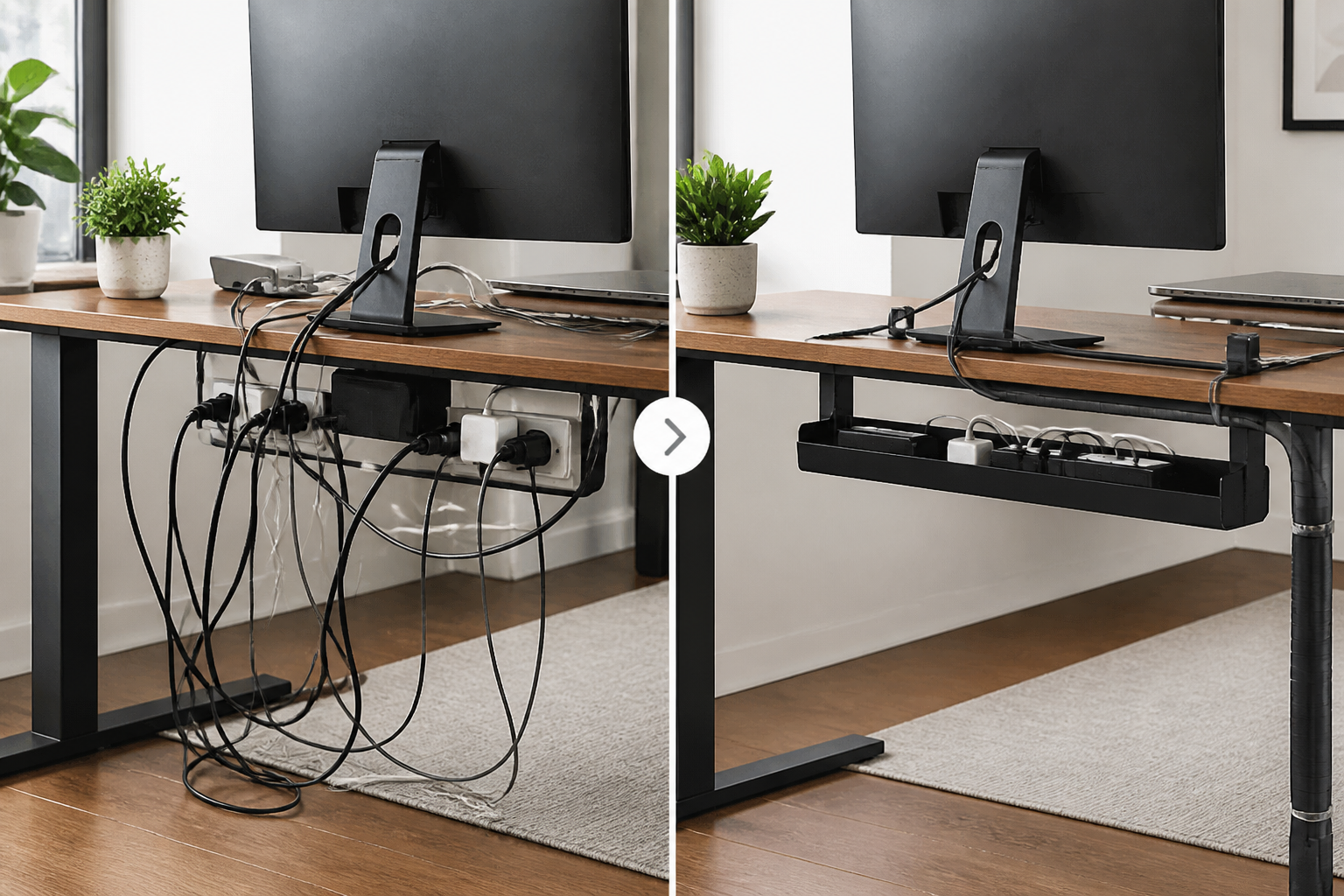
Under-desk cable trays are one of the most effective ways to reduce visible clutter. They allow you to route excess cord length and keep power strips off the floor. This can make cleaning easier and create more open space around your legs.
Some trays are open baskets, while others are slim channels or mounting rails. The right style depends on how many cables you have and how much space is available under the desk. If your desk has limited clearance, a low-profile tray may be more practical than a deep basket.
Velcro straps and reusable ties
Reusable cable ties are a flexible option for grouping cords behind a monitor, along a desk leg, or near a PC tower. They are especially helpful when you regularly disconnect and reconnect devices. Unlike permanent ties, they allow you to add or remove cables without replacing the organizer each time.
For many home desks, a combination of cable clips, a tray, and a few reusable ties is enough to make a major difference without adding complexity.
Route Cables with a Clear Plan
Good cable organization is not just about hiding cords. It is about giving them a route that makes sense. A planned layout reduces tangles, makes future adjustments easier, and helps keep cords from drifting back onto the desk surface.
Follow the shortest practical path
Cables do not need to be perfectly invisible to look organized. In fact, forcing a cable to travel too far can create extra slack and more clutter. Try to route each cord along the shortest practical path to its destination while leaving enough room for movement and adjustment.
Keep power and data cables separated when possible
When several cables run together, it can be helpful to group like with like. For example, monitor and peripheral cables can be routed together, while chargers and power strips stay on a separate path. This makes the system easier to understand and adjust later.
Use the back and underside of the desk
The back edge and underside of a desk are usually the best places to hide excess cabling. Many people let cables travel across the desktop simply because that is the easiest route during setup. Taking a few minutes to move those cords under the desk can significantly improve the look of the workspace.
If your desk has built-in grommets or cable pass-throughs, use them. If not, routing cables down a rear leg or behind the monitor stand can still create a cleaner appearance.
Leave room for movement and upgrades
A tidy desk should still be practical. Avoid pulling cables so tightly that they strain connectors or make it difficult to move a monitor, docking station, or laptop. A small amount of slack can help prevent accidental disconnections and make future changes less frustrating.
Choose Desk Accessories That Reduce Cable Visibility
Sometimes cable clutter is made worse by the way the desk is arranged. The right accessories can reduce how much cable is visible in the first place.
Use a monitor stand or monitor arm
Raising a monitor can create more space to route cables behind it and under the desk. A monitor arm can be especially helpful because it lifts the display off the desktop, making it easier to keep cords organized and out of sight. This can also free up room for a keyboard, notebook, or other essentials.
Consider a docking station or hub
If your setup involves frequent plugging and unplugging, a dock or hub can reduce the number of cables that reach your main device. Instead of multiple cords running directly to a laptop, a single connection may handle power, display, and peripherals. This does not eliminate cables, but it can simplify the entire arrangement.
When evaluating a dock or hub, think about your actual device needs rather than buying one with more ports than you will use. A simpler option may be easier to manage and less likely to add unnecessary clutter.
Use vertical or compact storage
Some clutter comes from devices themselves, not just their cables. Vertical laptop stands, compact charging stations, and small accessory trays can reduce how much space cords take up across the desktop. A more compact arrangement often makes cable management easier because there is less surface area for wires to spread across.
Practical Buying Considerations for Cable Management Products
If you decide to buy cable management accessories, it helps to focus on compatibility and usability rather than appearance alone. A product that looks neat in photos may not suit your desk dimensions or device mix.
Check the number and type of cables you need to manage
Before purchasing anything, count the cables you actually want to organize. Consider whether they are thin charging cords, thick power cables, bundled monitor leads, or a mix of all three. Some products are designed for one or two cords, while others are better for larger bundles.
Measure your available space
Under-desk trays, boxes, and mounts all depend on clearance and placement. Measure the underside of the desk, the distance from the floor, and the width of the area where the product will sit. This is especially important if you have drawer units, PC towers, or leg supports that limit where organizers can be installed.
Look for easy installation and removal
If you frequently change your workspace, choose products that are easy to adjust. Reusable ties, clip-on trays, and nonpermanent holders can be more practical than solutions that are difficult to reposition. On the other hand, if your desk layout is stable, a more fixed solution may be worth considering.
Think about access as well as appearance
A cable organizer should make your desk easier to use, not just prettier. If it blocks a power switch, makes it hard to unplug a device, or hides cables so well that maintenance becomes annoying, it may not be the right fit. The best products strike a balance between neatness and convenience.
Common Mistakes That Make Cable Clutter Worse
Many desks become cluttered not because cable management is impossible, but because the wrong habits gradually add more mess. Avoiding a few common mistakes can save time and keep your setup cleaner for longer.
Buying organizers before sorting cables
It is easy to assume that a cable box or sleeve will solve the problem on its own. But if you have too many unused cords, the accessories may only hide the clutter rather than reduce it. Start by removing unnecessary cables, then choose organizers based on what remains.
Mixing all cables into one loose bundle
A giant bundle may look tidy at first, but it can become difficult to work with later. If one device needs to be moved or replaced, the entire cluster may need to be undone. Smaller groups are often easier to manage and less likely to become tangled over time.
Ignoring slack and strain
Cables that are pulled too tightly can be inconvenient to adjust and may create stress at the connection point. Leave enough length for normal use, especially for moving parts such as adjustable monitors or laptops that are docked and undocked regularly.
Letting one new device disrupt the whole setup
When a new charger or peripheral is added, many people simply run the cable wherever it fits. Over time, that habit can unravel an otherwise tidy desk. Whenever you add a new device, take a moment to decide whether its cable should be clipped, tied, routed, or hidden before you leave it in place.
Simple Desk Habits That Keep Cables Neat
Once your desk is organized, the next challenge is keeping it that way. A few small habits can help prevent cable clutter from returning.
- Return chargers to the same spot: Keep frequently used charging cables in a fixed location so they do not drift across the desktop.
- Label where helpful: Small tags can make it easier to identify similar-looking cables when you need to unplug something.
- Bundle spare cords separately: Store unused cables in a drawer, pouch, or box instead of leaving them behind the desk.
- Review your setup occasionally: Every few months, check whether any cables can be removed, rerouted, or better organized.
- Avoid permanent clutter habits: Try not to use the desk surface as a storage area for extra adapters or cables you do not use daily.
The main advantage of these habits is that they reduce the need for large cleanup sessions. A desk that is maintained regularly tends to stay manageable with less effort.
Who These Cable Management Solutions May Suit
Different desk users have different needs, and cable management solutions should match the way the workspace is used.
Home office users
If your desk is used for work, a cleaner cable layout can improve the sense of order and make the space easier to reset at the end of the day. A docking station, under-desk tray, and a few reusable ties are often practical starting points.
Gamers and multi-device setups
Gaming desks often have multiple peripherals, charging cables, audio devices, and display connections. In these setups, grouping related cables and keeping power off the desktop can make a noticeable difference. More active users may benefit from flexible solutions that are easy to reconfigure.
Students and compact desks
Smaller desks can become cluttered quickly, especially when charging phones, tablets, and laptops in the same space. Compact organizers, adhesive clips, and minimal accessory choices are often best for tight areas.
Shared workspaces
If more than one person uses the same desk, it may help to label cables and keep the arrangement simple. Shared spaces work best when cable paths are intuitive and easy for different users to understand.
Frequently Asked Questions
What is the easiest way to reduce cable clutter around a computer desk?
The easiest first step is usually to remove unused cables and group the ones you still need. After that, use clips, ties, or an under-desk tray to guide the remaining cords out of sight.
Do I need expensive products to organize desk cables?
Not necessarily. Many desks can be improved with basic reusable ties, adhesive clips, and better routing. More advanced products are helpful for larger setups, but they are not always required.
Should all cables be hidden completely?
Not always. Some cables need to remain accessible for convenience or regular unplugging. The goal is usually to reduce visible clutter and make the setup easier to manage, not to hide every cord at any cost.
What is the best cable management option for multiple devices?
A combination approach often works best. For example, an under-desk tray can hold the power strip, while ties or sleeves keep device cables grouped and clips guide charging cords along the desk edge.
How often should I recheck my cable setup?
It is useful to review your setup whenever you add a new device, move furniture, or notice that cables have started to spread again. A quick periodic check can prevent clutter from building up.
Conclusion
Reducing cable clutter around your computer desk is mostly about making thoughtful, practical decisions. Start by removing unnecessary cords, then route the remaining ones in a way that fits your workflow. Use organizers that match the number and type of cables you have, and focus on solutions that improve both appearance and usability.
A cleaner desk does not have to mean a more complicated setup. In many cases, a few simple changes—such as reusable ties, cable clips, an under-desk tray, or a docking station—can make a workspace feel far more manageable. The key is to choose tools and habits that fit your desk, your devices, and the way you actually work.
With the right approach, cable management becomes less about hiding cords and more about creating a calmer, easier-to-use space.