Tablets are often seen as lightweight devices for streaming, reading, or casual browsing, but with the right accessories, they can become surprisingly productive tools. Whether you use a tablet for note-taking, remote work, sketching, content planning, studying, or managing daily tasks, a few well-chosen add-ons can improve comfort, speed, and overall efficiency.
This guide walks through the most useful accessories to make your tablet more productive, along with the features worth looking for and the common mistakes to avoid. The goal is not to turn a tablet into something it is not, but to help it do more of the work you need it to do with less friction.
Why tablet accessories matter for productivity
A tablet becomes more productive when it is easier to type, write, view, charge, and carry. Many people start with the tablet itself and later realize that the device works best when paired with accessories that match their tasks. A tablet may be perfectly capable on its own, but a better stand, keyboard, stylus, or storage accessory can reduce interruptions and make longer sessions more comfortable.
The best accessories usually solve a real problem. If you spend a lot of time writing emails, a keyboard matters more than a stylus. If you sketch or annotate PDFs, a pen is often more valuable than a case with a built-in keyboard. If you move between meetings, classes, or coffee shops, a protective sleeve and portable charger may be more useful than a desk-focused setup.
Keyboard cases and tablet keyboards
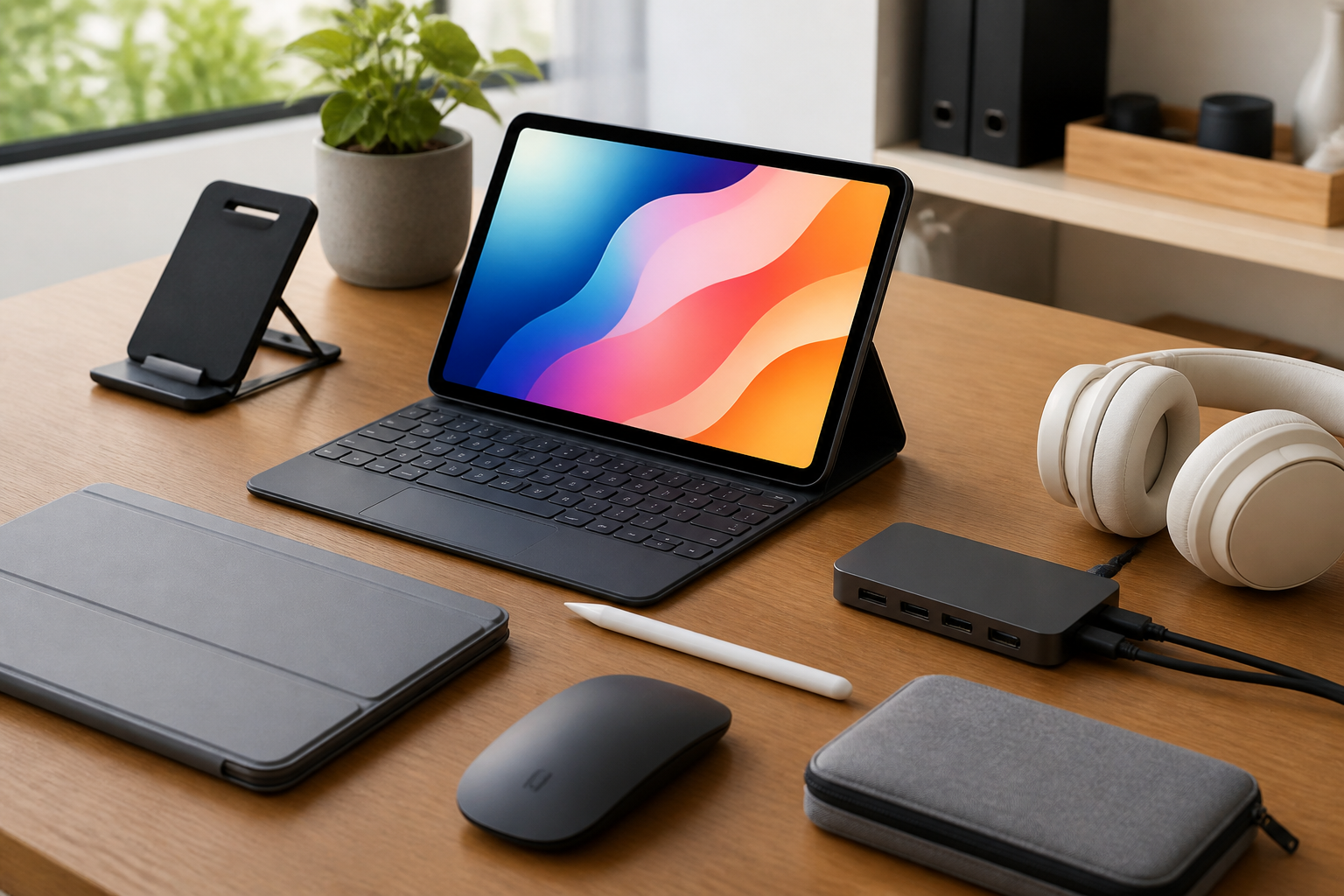
For many people, a keyboard is the single most important accessory for productivity. Typing on a touchscreen is fine for short replies, but it becomes slow and tiring for documents, notes, spreadsheets, and extended messaging. A keyboard case or standalone keyboard can make a tablet feel much closer to a small laptop.
What to look for in a tablet keyboard
Comfort matters first. Key spacing, key travel, and layout all affect how quickly you can type accurately. A cramped keyboard can slow you down more than it helps. If you plan to type often, a full-size or near full-size layout is usually easier to live with than a very compact one.
Connection type also matters. Bluetooth keyboards are flexible and can work with multiple devices, while connector-based keyboard cases may offer a more integrated experience. Some users prefer a case with a built-in keyboard because it combines protection and typing support in one package. Others prefer a separate keyboard because it can be positioned more comfortably on a desk.
Battery life, weight, and portability should be considered too. A productivity accessory should make your setup easier, not bulky and awkward. If you commute often, a lighter keyboard may be the better choice even if it sacrifices some desk comfort.
Who a tablet keyboard suits best
A keyboard is especially useful for students taking notes, professionals answering messages or editing documents, writers outlining ideas, and anyone who regularly works in Google Docs, email, or spreadsheets. If your tablet is mainly for reading and streaming, a keyboard may be less essential.
Stylus pens for note-taking, sketching, and markup
A stylus can be one of the most useful tablet accessories for people who work visually or prefer handwriting. It gives you more precision than fingers alone and can make note-taking, annotation, and creative work much easier. Even if you do not draw, a stylus can speed up tasks such as marking PDFs, circling edits, signing documents, or selecting small on-screen elements.
Features that improve stylus productivity
The most important features depend on your use. Pressure sensitivity is valuable for drawing and design work. Palm rejection is important if you plan to rest your hand on the screen while writing. Low latency can make writing feel more natural and responsive. Shortcut buttons can also help if you regularly switch tools or erase mistakes.
For note-takers, comfort and grip are important. A pen that feels awkward will not be used often, no matter how advanced the feature list looks. It is also worth checking whether the stylus charges by cable, magnetic attachment, or replaceable battery, since each option affects convenience in a different way.
Best use cases for a stylus
Students often use styluses to handwrite notes, annotate lecture slides, and solve equations. Designers and illustrators may use them for sketching or editing. Office users may find them helpful for signing forms, making quick annotations, or navigating more precisely than with a finger.
If your work is mostly typing, a stylus is still useful but may be a secondary accessory rather than the main one. For many people, the ideal setup is a keyboard plus stylus, since each solves a different productivity problem.
Tablet stands and adjustable holders
Good posture and good viewing angles can have a major effect on productivity. A tablet stand lifts the screen to a more comfortable position, which can reduce neck strain and make it easier to use the device for long periods. It also helps keep the tablet stable while typing, video calling, drawing, or following instructions on screen.
Why a stand can improve workflow
A tablet lying flat on a table is not always practical. A stand can create a more desk-like setup, especially when paired with a keyboard. It can also improve multitasking by making it easier to view reference material while using another device. If your tablet spends time on a kitchen counter, bedside table, or work desk, a stand often makes it easier to interact with.
What to look for in a stand
Look for adjustable angles, sturdy support, and a base that does not slide around easily. If you use a larger tablet or a protective case, the stand should be wide enough to hold both securely. Foldable stands are useful for travel, while heavier desktop stands are better for a fixed work area.
Some stands include charging cable cutouts or rotation features, which can add flexibility. If you switch between portrait and landscape use, choose a stand that can handle both comfortably.
Protective cases that support productivity
A tablet case does more than protect the device from scratches and minor bumps. The right case can also improve usability. A case with a kickstand, folio cover, or magnetic closure may help with viewing angles, portability, and organization.
Useful case features
A built-in stand is helpful for watching presentations, reading documents, or typing with a separate keyboard. A slim profile keeps the tablet easy to carry, while a more rugged case may suit people who move between locations frequently. Some cases include storage for a stylus, which can prevent loss and keep everything together.
When choosing a case, make sure it does not block ports, buttons, or charging access. A case should support your workflow rather than force you to remove it every time you want to connect a cable or accessory.
Common mistake to avoid with cases
One common mistake is choosing a case based only on appearance. A stylish case that adds unnecessary bulk or does not support the tablet at the right angle can make productivity worse. Another mistake is buying a case that fits the tablet model loosely, especially if the tablet is used in a bag or carried often.
External storage and file management accessories
When a tablet is used for work or school, storage can become a practical concern. Photos, video files, course materials, downloads, and project files can add up quickly. While cloud storage is useful, some people also benefit from external storage accessories that make file access more flexible.
Options to consider
Depending on the tablet model, you may be able to use a USB drive, card reader, or external SSD with the right adapter. These tools are helpful for transferring files, backing up important documents, or moving large media projects between devices. If your tablet supports expandable storage, a memory card may also be worth considering.
File organization matters just as much as storage size. A productivity-focused tablet setup often works best when you combine enough space with a clear system for folders, cloud syncing, and regular cleanups. The accessory is only useful if it fits your broader workflow.
Portable chargers and power accessories
A tablet is only productive when it has enough battery to finish the task. Portable chargers and reliable charging cables are among the most practical accessories for people who work away from a desk. They can help you avoid interruptions during classes, travel, meetings, and long study sessions.
What to consider before buying
Look for compatibility, charging speed, and portability. A charger should support your tablet’s charging requirements and should not be so large that you leave it at home. Cable quality matters too, especially if you rely on your tablet daily. A durable cable can reduce the frustration of intermittent charging or frequent replacements.
If you often use a keyboard, stylus, or external storage device, think about how charging and accessory connections will work together. A productive setup should leave enough ports or wireless options available for everything you use.
Headphones and audio accessories for focus
Audio may not seem like a productivity accessory at first, but it can be very important. Headphones can help you concentrate in shared spaces, join calls more clearly, and avoid distractions when studying or working. They are especially helpful if your tablet is used for remote meetings, language learning, or instructional videos.
Choosing the right audio accessory
Comfort is important if you wear headphones for long periods. Wireless models reduce cable clutter and can make it easier to move around, while wired models may be simpler for people who want a straightforward setup. If you use voice calls frequently, good microphone quality can matter as much as sound quality.
For productivity, the best headphones are not always the most advanced. The better choice is often the one that is comfortable, reliable, and easy to keep charged or connected.
Privacy screens and screen protectors
Privacy and protection both play a role in productivity. A screen protector can help guard against scratches, while a privacy filter can make it harder for people nearby to view your screen. This can be useful in libraries, cafes, open offices, or public transit.
When these accessories make sense
Screen protectors are useful for most tablet owners, especially those who travel with the device. Privacy filters are more situational, but they can be valuable if you handle sensitive documents or prefer a more private workspace. If you use a stylus, check that any screen protector you choose still feels smooth and responsive enough for writing.
These accessories are easy to overlook because they do not directly speed up work, but they can protect the tablet and help you stay focused in real-world settings.
Portable keyboards, mice, and trackpads
Some tablet users want more than a keyboard. A mouse or trackpad can make navigation faster and more precise, especially for spreadsheet work, editing, file management, and multitasking. Many modern tablets support pointer input, which can make the experience feel much closer to using a traditional computer.
How to decide if you need one
If you spend time dragging files, selecting text, or switching among multiple apps, a pointer device may save effort. If your work is mostly reading and writing, a keyboard and stylus might be enough. A trackpad can be useful if you prefer gesture controls, while a mouse can be better for point-and-click precision.
As with keyboards, portability matters. A compact mouse or foldable trackpad may be a better fit for travel than a full-size desktop version.
Docking accessories and multiport hubs
Some tablets support hub-style accessories that expand what the device can connect to. This can be especially helpful if you need external displays, storage devices, wired internet, or multiple peripherals. A hub can turn a tablet into a more complete workstation when you are at a desk.
What to check before buying a hub
Compatibility is the main concern. Not every tablet supports every hub feature, and some accessories may require specific ports or power delivery capabilities. It is also important to think about how many devices you plan to connect at once. A hub with the wrong combination of ports may look useful but fail to cover your actual needs.
If you plan to use a hub regularly, choose one that is compact, reliable, and easy to pack. A cluttered desk setup can undermine productivity rather than improve it.
How to choose the right accessories for your tablet
The best accessory combination depends on how you actually use your tablet. Start by identifying the tasks that slow you down. If typing is the bottleneck, prioritize a keyboard. If handwriting or drawing is central to your work, prioritize a stylus. If you often work in different places, a case, stand, and portable charger may be the most practical first choices.
It also helps to think in terms of setup, not just single accessories. A tablet used for student life may need a stylus, stand, and protective case. A tablet used for office tasks may benefit more from a keyboard, trackpad, and hub. A travel-friendly setup may focus on compactness, battery support, and protection.
Buying mistakes to avoid
- Buying accessories before checking compatibility: Tablet models, port types, and operating systems can affect what works properly.
- Choosing the cheapest option without checking usability: A low-cost accessory that feels awkward or flimsy may not be worth using.
- Adding too many accessories at once: More gear can create more clutter if it does not solve a real need.
- Ignoring portability: A great desk accessory may be inconvenient if you move around often.
- Overlooking comfort: An accessory that is uncomfortable to type with, hold, or carry may reduce use over time.
Practical setup ideas by use case
Different users need different combinations. A student might pair a stylus, keyboard, and lightweight stand for taking notes and writing assignments. A remote worker might prefer a keyboard, mouse or trackpad, external storage option, and charging accessories. A creative user may focus on a stylus, stand, and protective case with a stable angle.
If your tablet is used in multiple ways, start with the accessory that removes the biggest daily annoyance. That approach is usually more effective than trying to build a complete setup all at once.
Frequently asked questions
Do I need a keyboard to make a tablet productive?
Not always, but a keyboard is very helpful if you type often. It is one of the most practical upgrades for emails, documents, and note-taking.
Is a stylus worth buying if I do not draw?
Yes, if you write by hand, annotate files, sign documents, or want more precise control. If you mostly type, it may be less important.
What is the most versatile tablet accessory?
For many users, a keyboard or keyboard case is the most versatile because it supports writing, messaging, planning, and general work tasks.
Should I buy a case before other accessories?
A case is often a sensible first purchase because it protects the tablet and may add stand functionality. After that, choose accessories based on the tasks you do most.
Can a tablet replace a laptop with the right accessories?
For some users and some tasks, a well-accessorized tablet can handle a large part of daily work. However, the answer depends on the software you need, the type of files you use, and how much typing or multitasking you do.
Conclusion
The best accessories for tablet productivity are the ones that reduce friction and match the way you work. A keyboard can speed up writing. A stylus can improve note-taking and precision. A stand can make long sessions more comfortable. A protective case, portable charger, headphones, storage tools, and a hub can all support a smoother workflow when chosen with care.
Before buying, think about your most common tasks, where you use the tablet, and what slows you down most often. That simple approach helps you build a productive setup without wasting money on accessories you do not need. With the right combination, a tablet can become a much more capable everyday work tool.