Introduction
A good webcam can help you look clear and professional on video calls, but the camera itself is only part of the setup. For many work from home users, the real difference comes from a few practical accessories that improve image quality, make meetings more comfortable, and reduce small daily frustrations. The best webcam accessories do not need to be complicated or expensive. In many cases, they simply help your camera perform better in the space you already have.
This guide focuses on useful webcam accessories for work from home users and explains what each one does, who it may help, and what to consider before buying. Whether you join meetings every day, teach online, interview candidates, or only use your webcam occasionally, the right accessories can make your setup easier to use and more reliable.
The goal is not to build a studio-level system. It is to choose practical add-ons that support clearer video, better audio, improved positioning, and a cleaner workspace. If you are trying to decide what is worth buying first, start with the accessories that solve your biggest problem rather than collecting extra gear you may never use.
Why webcam accessories matter for remote work
Work from home video calls often take place in imperfect conditions. A room may be too dark, the camera may sit at the wrong angle, and the audio may pick up more background noise than you would like. Even a decent webcam can struggle when the lighting is uneven or the lens is placed too low on a monitor. Accessories can help address these common issues without replacing your whole setup.
Another reason accessories matter is consistency. If you join calls from the same desk every day, you want a setup that stays in place, looks tidy, and is easy to adjust quickly. Accessories like a monitor mount, ring light, or external microphone can make your appearance and sound more predictable from meeting to meeting.
For many users, the best accessories also save time. Instead of repeatedly moving the webcam, checking the angle, or trying to balance it on a stack of books, a simple stand or mount can keep everything ready to go.
Lighting accessories that improve webcam image quality
Lighting is one of the most important factors in webcam quality. If a room is dim, overhead lighting is harsh, or daylight comes from behind you, the camera may produce a grainy or shadowed image. Lighting accessories can often make a bigger difference than a more expensive webcam.
Ring lights
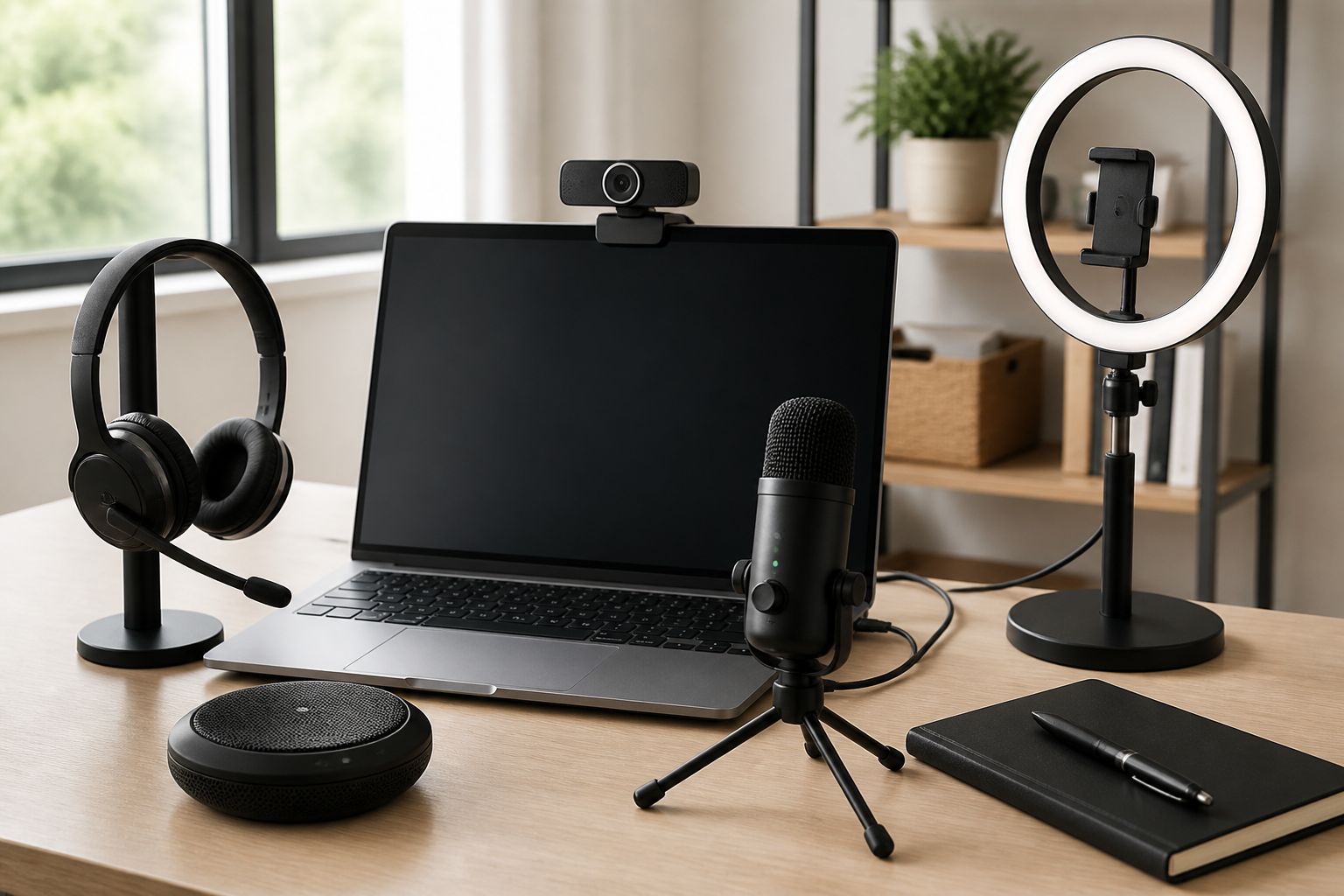
Ring lights are popular because they provide even, front-facing light that can help soften shadows. They are often useful for users who work in rooms with limited natural light or who join calls at different times of day. A ring light may sit on a desk, attach to a stand, or mount in a compact design suitable for small workspaces.
When comparing ring lights, consider brightness adjustment, color temperature settings, and how easy it is to position the light without blocking your screen. A model that is too bright or too close may feel distracting, so adjustability matters more than sheer output.
Desk lamps with adjustable color temperature
Not every user needs a ring light. A well-placed desk lamp can also improve video quality if it offers the right angle and a comfortable light tone. Lamps with adjustable brightness or warm-to-cool settings can help you avoid harsh shadows while keeping your face visible on camera.
This option may suit people who want a general-purpose desk light that can also support reading, note-taking, or evening work. If your meetings happen mostly in the same location, a flexible desk lamp may be more practical than a dedicated camera light.
Monitor-mounted light bars
Monitor light bars are a space-saving option that sit on top of a screen and direct light toward your desk. They are not designed specifically for webcams, but they can be useful for creating a brighter and more balanced workspace. Some users find them especially helpful when they do not want another item taking up desk space.
Before buying one, check whether the light angle works with your webcam placement. A good light bar should improve visibility without creating glare on your monitor or washing out your face on camera.
Mounts and stands that improve camera positioning
Camera angle has a major effect on how you appear in meetings. A webcam placed too low can create an unflattering view, while one that is too high or too far off-center may feel awkward. Mounts and stands help place the camera at a better height and distance.
Monitor mounts
Many webcams include a clip that sits on top of a monitor, but not all setups are stable or well-aligned. A monitor mount can help keep the camera centered and securely positioned. This is especially useful if you use a thin monitor bezel, switch between multiple displays, or adjust your screen position often.
Look for a mount that matches your monitor thickness and webcam size. It should hold the camera firmly without slipping, while still allowing you to make small angle changes when needed.
Tripods and desktop stands
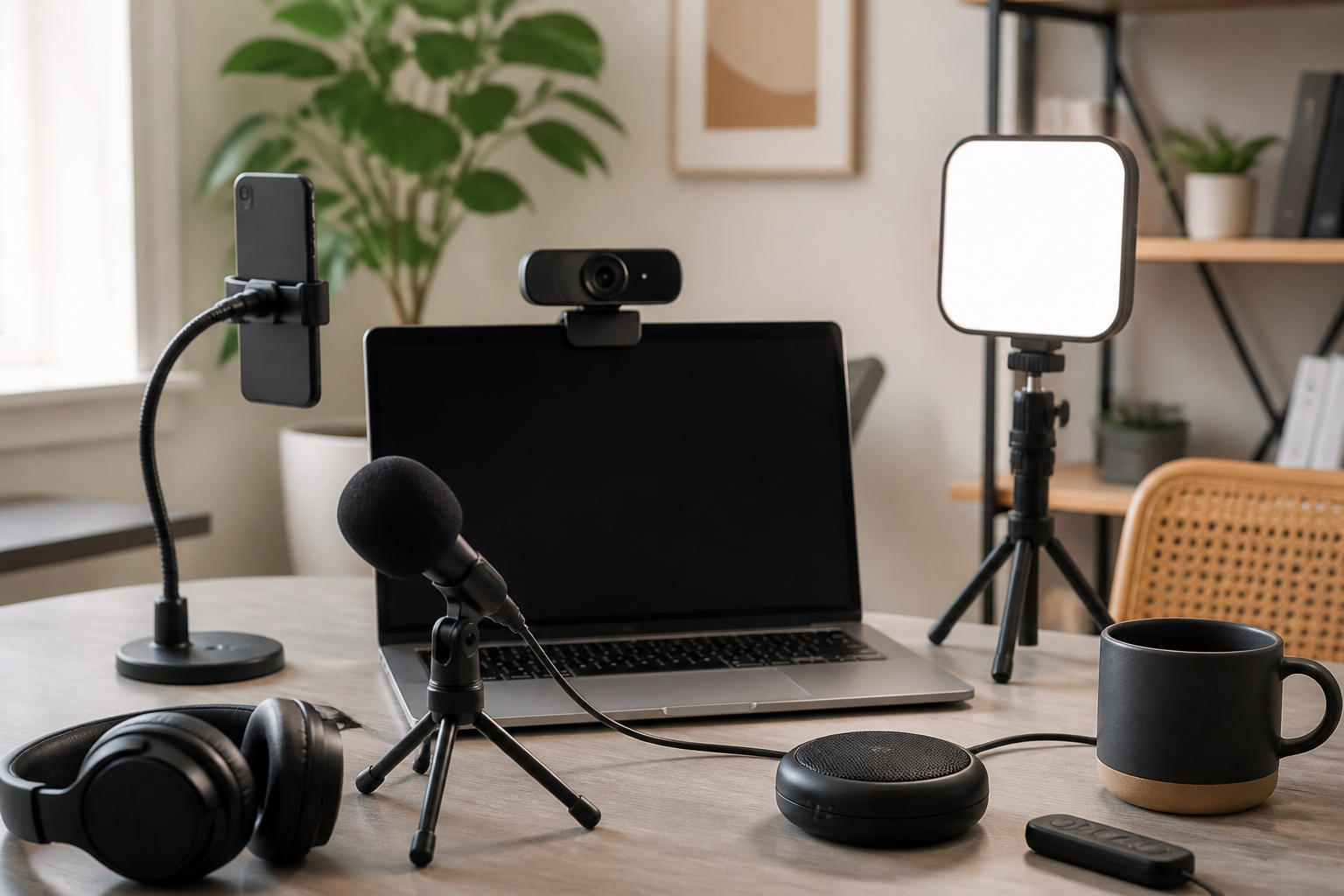
A small tripod or desktop stand gives you more flexibility than a clip-on mount. It can be useful if your camera is not directly above the monitor, if you want to place it at eye level, or if your desk layout makes standard mounting difficult. Some users also prefer tripods because they can move them from one workstation to another.
When choosing a tripod, pay attention to height range, base stability, and the type of head or tilt mechanism it uses. A stand that is easy to adjust is more helpful than one that seems flexible but shifts out of position during calls.
Tripod adapters and mounting accessories
If you already own a tripod or camera stand, a mounting adapter may let you use your webcam with that equipment. This can be a smart choice for users who want to avoid buying an entirely new setup. Compatibility is the main issue here, so check the webcam thread size or mounting method before purchasing an adapter.
Audio accessories that help you sound clearer
Good video is only part of a successful call. If people cannot hear you clearly, the meeting still feels difficult. Many built-in webcam microphones are acceptable for casual use, but work from home users often benefit from an external audio accessory.
External USB microphones
A USB microphone is one of the most useful upgrades for frequent video callers. It can improve voice clarity and reduce the need to speak louder than necessary. This may be especially helpful for online teaching, regular client meetings, and team calls where audio clarity matters more than visual quality alone.
When choosing a microphone, consider the pickup pattern, whether it is designed for desk use, and how much space it requires. Some microphones are better for a single speaker at a desk, while others are more suited to shared environments. A simple plug-and-play model may be ideal for users who want convenience rather than advanced controls.
Headsets and earbuds with microphones
For users working in noisier homes, a headset or earbud microphone can help isolate speech and limit background distractions. This is a practical option if you share a space, take calls near household activity, or need a more consistent sound profile than a laptop microphone can provide.
Comfort is important if you wear it for long meetings. Look for lightweight designs, adjustable headbands, and microphone placement that sits naturally without requiring constant repositioning.
Pop filters and mic stands
If you use a standalone microphone, a pop filter and a small stand can improve day-to-day usability. A pop filter may reduce strong breath sounds in close speaking distances, while a stand helps place the microphone at a more comfortable height and angle. These accessories are simple, but they can make a setup feel more polished and easier to manage.
Privacy and protection accessories
Not every webcam accessory is about performance. Some are about control and peace of mind. Privacy and protection add-ons can be particularly useful for people who leave their devices set up on a desk between meetings.
Webcam privacy covers
A privacy cover is a small physical shutter that blocks the camera lens when the webcam is not in use. Many users like this accessory because it provides a visible sense of control and is easy to use during the workday. It can be especially practical for laptops or external webcams that stay connected all the time.
Before buying, check that the cover fits your webcam shape and does not interfere with lens caps, clips, or automatic positioning features. A cover should slide or close smoothly without leaving residue or blocking nearby sensors.
Lens cleaning tools
Fingerprint smudges, dust, and surface marks can reduce clarity more than people expect. A microfiber cloth and gentle cleaning tool are inexpensive but useful accessories for keeping the lens clean. This is a simple habit, but it can help avoid blurry or hazy video caused by buildup on the camera glass.
Choose cleaning tools designed for electronics and avoid harsh materials that might scratch the lens. If you regularly work in a dusty environment, keep a cloth in your desk drawer so it is easy to use before important calls.
Cable management accessories for a cleaner workspace
Loose cables can make a webcam setup feel messy and harder to use. For remote workers who care about a tidy desk, cable management accessories are a practical improvement. They may not directly improve image quality, but they can make the whole system look more organized and feel less frustrating.
Cable clips and adhesive organizers
Cable clips can keep webcam, microphone, and lighting cords routed along the edge of a desk or monitor. Adhesive organizers are useful when you want wires to stay in one place without dangling across your workspace. These are especially helpful if you frequently unplug devices or move your laptop between setups.
Check the adhesive strength and surface compatibility before buying. Some organizers hold well on smooth surfaces but may not work as reliably on textured desks.
Velcro ties and cable sleeves
Velcro ties are a simple choice for bundling cords together. Cable sleeves are better if you want a more finished look for several wires running along the same route. These accessories can make a small workspace feel less cluttered and may reduce the chance of accidentally pulling on a cable during a call.
Desktop and workspace accessories that support webcam use
Sometimes the best webcam improvement comes from adjusting the space around the camera rather than the camera itself. A more stable, ergonomic, and orderly desk can make it easier to look into the lens and stay comfortable during long meetings.
Monitor risers and laptop stands
A monitor riser or laptop stand can help bring your screen and webcam closer to eye level. This often results in a more natural camera angle because you are not looking down into the lens. It can also support better posture during long work sessions by raising your screen to a more comfortable height.
When choosing a stand, think about the height you actually need, whether you want storage beneath the platform, and how stable your screen will remain. A stand that improves both ergonomics and webcam placement can be a smart dual-purpose purchase.
Secondary lighting and background organization
Some accessories help not by attaching to the webcam, but by improving the area behind you. A simple bookshelf light, desk lamp, or organized background can make your video frame feel more professional. If your camera points toward a cluttered or dark area, even a good webcam may look less polished.
You do not need a decorative studio setup. A few intentional changes, such as removing distracting items from view or keeping a neutral background, can make a noticeable difference in video calls.
How to choose the right webcam accessories
Because not every accessory will be useful for every user, it helps to start with your current problem. If your video looks dim, focus on lighting. If your angle is awkward, focus on mounts or stands. If people say your voice is unclear, start with audio accessories. Matching the accessory to the issue is the most efficient way to build a useful setup.
Check compatibility first
Webcams vary in shape, mounting method, and connection type. Before buying an accessory, confirm that it works with your webcam model, monitor thickness, desk space, or operating system when relevant. A product that seems useful on paper may not fit your exact setup.
Consider ease of setup
Work from home accessories should reduce friction, not add it. If a light takes too long to adjust or a mount shifts out of position, you may stop using it. Look for equipment that is easy to place, easy to move, and easy to store if needed.
Think about multi-purpose value
Some accessories solve one problem only, while others help in several ways. A monitor riser can improve ergonomics and camera angle. A desk lamp can support both webcam use and general work. A USB microphone can help with meetings, recordings, and online presentations. Multi-purpose items may offer better long-term value for home offices.
Balance quality and simplicity
More features are not always better. A user who only needs clearer video for occasional meetings may benefit from a simple light and privacy cover rather than a full audio-and-lighting kit. Pick accessories that fit your usage level and workspace, not a setup that requires constant adjustment.
Common buying mistakes to avoid
One common mistake is buying accessories before identifying the real issue. If the problem is poor lighting, a new mount will not fix it. Another mistake is choosing a product that looks flexible but is not stable enough for everyday use. Stability often matters more than extra movement or flashy design.
It is also easy to overlook compatibility. A webcam privacy cover that does not fit properly, a mount that slips on a thin monitor, or a microphone that is inconvenient to place can turn a helpful product into clutter. Measure your setup and check the details before ordering.
Finally, some users buy too many items at once. A more practical approach is to improve one part of the setup, test it in real meetings, and then decide whether another accessory is still necessary. That method keeps spending focused and reduces unused gear.
Frequently asked questions
What is the most useful webcam accessory for work from home users?
For many users, lighting is the most noticeable improvement because it directly affects how the camera captures your face and workspace. If lighting is already good, a better microphone or a monitor mount may be the next most useful upgrade.
Do I need an expensive accessory bundle?
Not necessarily. Many people do better by buying one or two targeted accessories instead of a full bundle. Start with the item that solves your biggest issue, then add more only if needed.
Are privacy covers worth it?
They can be worth it for users who want a simple physical way to block the lens when not in a call. They are small, practical, and usually easy to use if they fit the webcam properly.
Should I buy a microphone if my webcam already has one?
If your current audio is clear enough for your meetings, you may not need one right away. But if people often ask you to repeat yourself or your environment is noisy, an external microphone or headset can be a useful improvement.
What should I buy first for a better webcam setup?
Most users should start with the accessory that addresses the biggest visible problem. Poor lighting usually points to a light source, bad framing points to a mount or stand, and unclear audio points to a microphone or headset.
Conclusion
Useful webcam accessories for work from home users are not about creating a complex studio. They are about making everyday video calls easier, clearer, and more comfortable. The best choices are usually the ones that solve a real problem in your workspace, whether that problem is dim lighting, poor camera angle, weak audio, or desk clutter.
If you want the biggest impact, begin with lighting, then consider a mount or stand, and add audio or privacy accessories as needed. A small number of thoughtful upgrades can create a much better video calling experience without overcomplicating your desk. By focusing on compatibility, ease of use, and practical value, you can build a webcam setup that supports your remote work routine in a simple, reliable way.